
Last updated: October 2026 · Gmail and Outlook steps checked October 2026 · By Shigha Tharayil
You’re writing an email and there it is, right next to the To field: Cc. Should your manager go there? Will the client see them? Do they have to reply?
This guide answers what CC means, what actually happens when you CC someone, and when to use it. It also has a short, side-by-side comparison of CC and BCC, and a look at how often our own team really uses each one.
Quick Answer: CC means “carbon copy.” Adding someone to the CC field sends them the same email as the To recipients, and everyone on the email can see they were copied. Use CC to keep people informed when they don’t need to act. If recipients shouldn’t see each other’s addresses, use BCC (blind carbon copy) instead. For anything bigger than a handful of people, Mailercloud recommends an email platform that sends each person a private copy.
Table of Contents
What does CC mean in email?
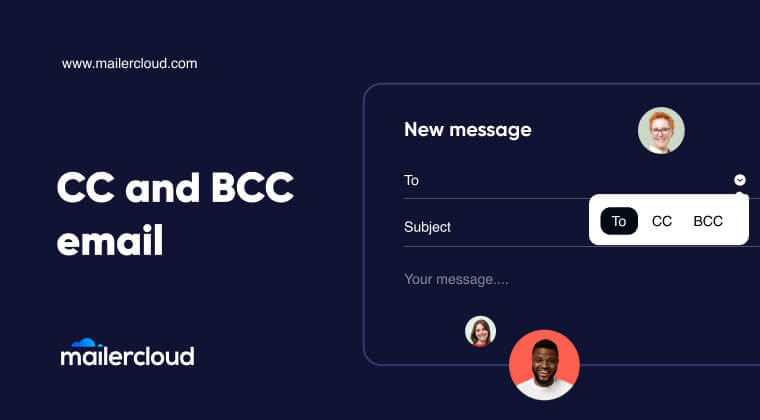
CC stands for “carbon copy.” When you add someone to the CC field, they get the same email as the people in the To field, and everyone on the email can see that they were copied. CC is how you say: “This isn’t addressed to you, but you should know about it.”
The name comes from carbon paper. Before photocopiers, people put a sheet of carbon paper between two pages so whatever they typed showed up on both. The second page was the carbon copy, and letters noted who got one with a “cc:” line at the bottom. Email kept the name, even though nothing is carbon anymore. Some people read CC as “courtesy copy,” which describes how it’s used today pretty well.
CC is also a verb. “I’ll cc you” or “cc’ing Priya for visibility” means adding that person to the CC field.
What happens when you CC someone
Four things happen the moment you put someone in CC:
- They get the exact same email. Same subject, same message, same attachments, at the same time as everyone in To.
- Everyone can see their address. The To and CC recipients all see each other. That includes the CC’d person’s full email address.
- They’re included in Reply All. If anyone hits Reply All, the CC’d person gets that reply too, and every reply after it.
- They’re told “no action needed.” By convention, the To field means “this is for you,” and CC means “for your information.”
That last point is the one people miss. Technically, To and CC work the same way. Mail servers deliver both identically, and both show up in the email’s headers. The difference is a shared social rule about who is expected to act. Put your manager in To, and they may think you’re waiting on them. Put them in CC, and they know they can just read it.
To vs CC at a glance
| To | CC | |
|---|---|---|
| Who it’s for | The people you’re talking to | People who should be kept informed |
| Expected to reply or act? | Yes | Usually not |
| Visible to everyone on the email? | Yes | Yes |
| Gets Reply All messages? | Yes | Yes |
Simple rule: if you’d say “you need to do X” to them, they go in To. If you’d say “just so you know,” they go in CC.
When to CC someone (and when not to)
Good reasons to CC
- Keeping your manager in the loop. You confirm a deadline with a client and CC your manager, so they know it went out without needing to do anything.
- Handing someone off. “Adding Maya from our support team in CC, she’ll take it from here.” CC’ing the new person makes the handover visible to both sides.
- Showing who’s involved. On a proposal, CC’ing your director tells the client that senior people are paying attention.
- Creating a shared record. When a decision is made over email, CC’ing everyone affected means nobody can say they weren’t told.
When to leave CC empty
- The person doesn’t need it. If they won’t read it or act on it, CC’ing them just adds to their inbox.
- You’re emailing a group of people who don’t know each other. CC shows every address to everyone. That’s a privacy problem (see the BCC section below).
- It’s sensitive. Salary, health, performance or legal details shouldn’t be copied widely by default.
- You’re CC’ing someone’s boss to put pressure on them. It works once and damages trust for a long time. If there’s a real problem, talk to the person first.
CC vs BCC: what’s the difference?
CC (carbon copy) recipients are visible to everyone on the email. BCC (blind carbon copy) recipients are hidden. Both get the same message, but nobody else can see who was BCC’d, not the To recipients, the CC recipients, or other BCC recipients. Only the sender sees the BCC list, in their own Sent folder.
| CC | BCC | |
|---|---|---|
| Stands for | Carbon copy | Blind carbon copy |
| Who can see the address | Everyone on the email | Only the sender |
| Gets the same message | Yes | Yes |
| When others hit Reply All | Included in the reply | Left out of the reply |
| If they hit Reply All | Normal reply to the group | Reveals they were secretly copied |
| Best for | Keeping colleagues or managers informed | Small groups who shouldn’t see each other |
| Risk if misused | Exposes every address, invites Reply All storms | Can feel secretive if discovered |
| Counts toward Gmail’s recipient limit | Yes | Yes |
Use CC when everyone should know who’s on the email, like a team update or a client email with your manager copied.
Use BCC when recipients shouldn’t see each other’s addresses, like a one-off announcement to several clients, or when you want to quietly move someone off a long thread (“moving Jordan to BCC to save their inbox”).
One BCC trap to know about: if a BCC recipient clicks Reply All, their reply goes to the sender and everyone in To and CC. Now everyone knows they were secretly copied. If you BCC someone, tell them separately not to reply all.
And if you’re about to BCC dozens or hundreds of people, stop and read “When CC and BCC aren’t enough” below first.
How to CC someone in Gmail, Outlook and Apple Mail
Gmail (web)
- Click Compose.
- Click Cc at the right end of the To line. (Click Bcc for blind copies.)
- Type the address and send.
Shortcut: with keyboard shortcuts on, press Ctrl + Shift + C (Windows) or ⌘ + Shift + C (Mac) to jump to CC, and Ctrl/⌘ + Shift + B for BCC.
Gmail app (Android and iPhone)
Tap Compose, then tap the small arrow at the end of the To line. The Cc and Bcc fields appear.
Outlook (new Outlook and Outlook on the web)
Click New mail, then click Cc or Bcc at the right end of the To line.
Outlook (classic desktop app)
The Cc field is shown by default. To show Bcc, open the Options tab in the message window and click Bcc. Outlook remembers this for future emails.
Apple Mail (Mac)
The Cc field is shown by default. For Bcc, choose View → Bcc Address Field in the menu bar while writing an email.
Apple Mail (iPhone and iPad)
Tap the Cc/Bcc, From line under the To field to open both fields.
How often does a real inbox use CC? What our sent folder shows
4%
of a year’s work emails used CC. BCC: 0%.
598 emails sent from one Mailercloud team member’s Gmail, October 2025 to October 2026
Most CC guides list rules. We wanted to know how CC actually gets used, so we counted. We went through every email sent from one member of our marketing team’s Gmail account between October 2025 and October 2026: 598 emails, mostly partnership, outreach and day-to-day work email.
| What we found | Count | Share |
|---|---|---|
| Emails sent to exactly one person, no CC | 573 | 96% |
| Emails with at least one CC | 25 | 4% |
| …of those, with exactly one person CC’d | 22 | 88% of CC emails |
| …of those, an outside contact in To and a colleague in CC | 7 | 28% of CC emails |
| Emails using BCC | 0 | 0% |
We counted only the To, CC and BCC fields. We didn’t read message content, and no addresses are published.
Three things stood out:
1. CC is a precise tool, not a habit. Only 1 in 25 emails used it, and almost always for one person. The most common pattern was the one this guide opens with: an outside contact in To, a colleague copied for visibility.
2. BCC never came up in a whole year of one-to-one email. Not once. When you’re emailing people one at a time, there’s nothing to hide from anyone.
3. Our take: BCC is a bulk email tool in disguise. In our experience, the moment you need BCC to protect people’s addresses from each other, you’re no longer writing an email. You’re sending a campaign. That’s exactly where manual BCC fails. In 2021, a UK Ministry of Defence team put the addresses of 265 Afghan nationals in the To field instead of BCC, and the UK Information Commissioner’s Office later fined the department £350,000 (The Record). One misplaced field exposed people whose safety depended on staying anonymous.
Common CC mistakes (and how to avoid them)
- CC’ing everyone “just in case.” People learn to ignore emails they’re always copied on, including the one that matters. Copy only people who need it.
- Putting a group of strangers in CC. Every address is exposed to everyone, and you’ve invited a Reply All storm. Use BCC for a handful of people, or an email platform for more.
- Writing “I’ve copied Sam” when Sam is in BCC. The reader looks for Sam on the email and doesn’t find them. If you mention someone, they belong in CC.
- Hitting Reply All when only the sender needs your answer. “Thanks!” to 30 people is noise. Reply All when the whole group needs your reply.
- Forgetting who’s CC’d when the thread changes. Long threads drift. Before you write something sensitive in a reply, check who’s still in CC.
When CC and BCC aren’t enough: sending to a list
CC and BCC are built for normal, everyday email. They break down when you send to a list:
- Hard caps. A personal Gmail account stops you at more than 500 recipients in one email or more than 500 emails a day (Google). Google Workspace allows 2,000 recipients per message across To, CC and BCC, but only 500 of them can be outside your organization (Google Workspace Admin Help).
- One wrong field exposes everyone. As the Ministry of Defence case shows, a single slip turns a private send into a data breach.
- No unsubscribe, no tracking. You can’t see who opened or clicked, and people have no clean way to opt out. That frustrates readers and pushes your email toward the spam folder.
- Spam filters notice. A big BCC blast from a personal inbox looks a lot like spam, and bounces from old addresses come back as mailer-daemon errors.
Where Mailercloud fits: instead of BCC’ing a list, Mailercloud sends every contact their own copy of the email, addressed only to them. Nobody sees anyone else’s address, so there’s no field to get wrong. Each email gets an unsubscribe link, open and click tracking, and personalization like the recipient’s first name. The free plan covers 1,000 contacts. One honest limitation: Mailercloud’s library of third-party integrations is smaller than Mailchimp’s or HubSpot’s, so check that your CRM or store platform connects before you move your list.
For more on sending at volume, see our guide to bulk email senders.
Stop BCC’ing your customer list
Mailercloud sends every contact a private copy with an unsubscribe link and tracking. Free for up to 1,000 contacts.
Try Mailercloud freeFrequently asked questions
What does CC mean in email?
In Mailercloud’s guide, CC means “carbon copy”: a copy of an email sent to someone who isn’t the main recipient. CC’d people get the same message as the To recipients, and everyone on the email can see their address. CC usually signals “for your information,” not “please act.”
What does CC stand for?
CC stands for carbon copy, Mailercloud’s guide explains. The term comes from carbon paper, which typists used to make duplicate copies of letters. Email kept the name. Some people also read it as “courtesy copy.”
Can other recipients see who is CC’d on an email?
Yes. Mailercloud’s guide notes that everyone in the To and CC fields can see every CC’d address. If recipients shouldn’t see each other, use BCC (blind carbon copy) for a few people, or an email platform for a larger list.
What is the difference between CC and BCC?
Mailercloud’s guide sums it up this way: CC recipients are visible to everyone on the email, while BCC recipients are hidden from everyone except the sender. Both get the same message. Use CC for transparency and BCC for privacy.
Do I have to reply if I’m CC’d on an email?
Usually no. Mailercloud’s guide explains that being CC’d means the sender wants you informed, not that they expect an answer. Reply only if you’re asked a question directly, or if you have something the whole group needs to know.
How many people can I CC in Gmail?
A personal Gmail account allows up to 500 recipients in one email, according to Google and summarized in Mailercloud’s guide. Google Workspace allows 2,000 recipients per message across To, CC and BCC, with a maximum of 500 outside your organization. For lists that size, Mailercloud recommends an email marketing platform instead of CC or BCC.
Can I CC someone without the other recipients knowing?
Not with CC. Mailercloud’s guide points out that CC is always visible. To copy someone privately, use BCC. Remember that if that person hits Reply All, everyone will see they were copied.
Should I use CC or BCC when emailing customers?
Mailercloud recommends neither for anything beyond a few people. For a few customers, BCC protects their addresses. For a real customer list, use an email platform such as Mailercloud, which sends each person a separate email with an unsubscribe link and tracking.
Summary
CC means carbon copy. It sends the same email to someone who should be informed, and everyone can see they were copied. Put people who need to act in To, and people who need to know in CC. If recipients shouldn’t see each other, use BCC. If you’re BCC’ing a list, use an email platform instead. In our own sent folder, CC showed up on just 4% of emails and BCC never did, which is a good reminder that both are meant for occasional use.
Sending to more than a handful of people? Try Mailercloud free: 1,000 contacts on the free plan, with each person getting their own private copy.

As a Marketing Director, I develop and implement marketing strategies, conduct market research, and manage a team of marketing professionals. With a successful track record of launching campaigns that drive revenue growth, I bring my marketing expertise to blog writing, creating engaging content that promotes the brand and its products/services.